
Features
Your places and alerts
Your places is the list the Conditions tab pages through: your current location first, then the places you chose, in your order. Each place carries its own alerts. This page has the steps for everything you do with the list, on iPhone, iPad and Android alike.
Your places is part of Viewpoint Online, like the rest of the Conditions tab.
Open Your places
- Open the Conditions tab.
- Tap the list button at the bottom right of the page.
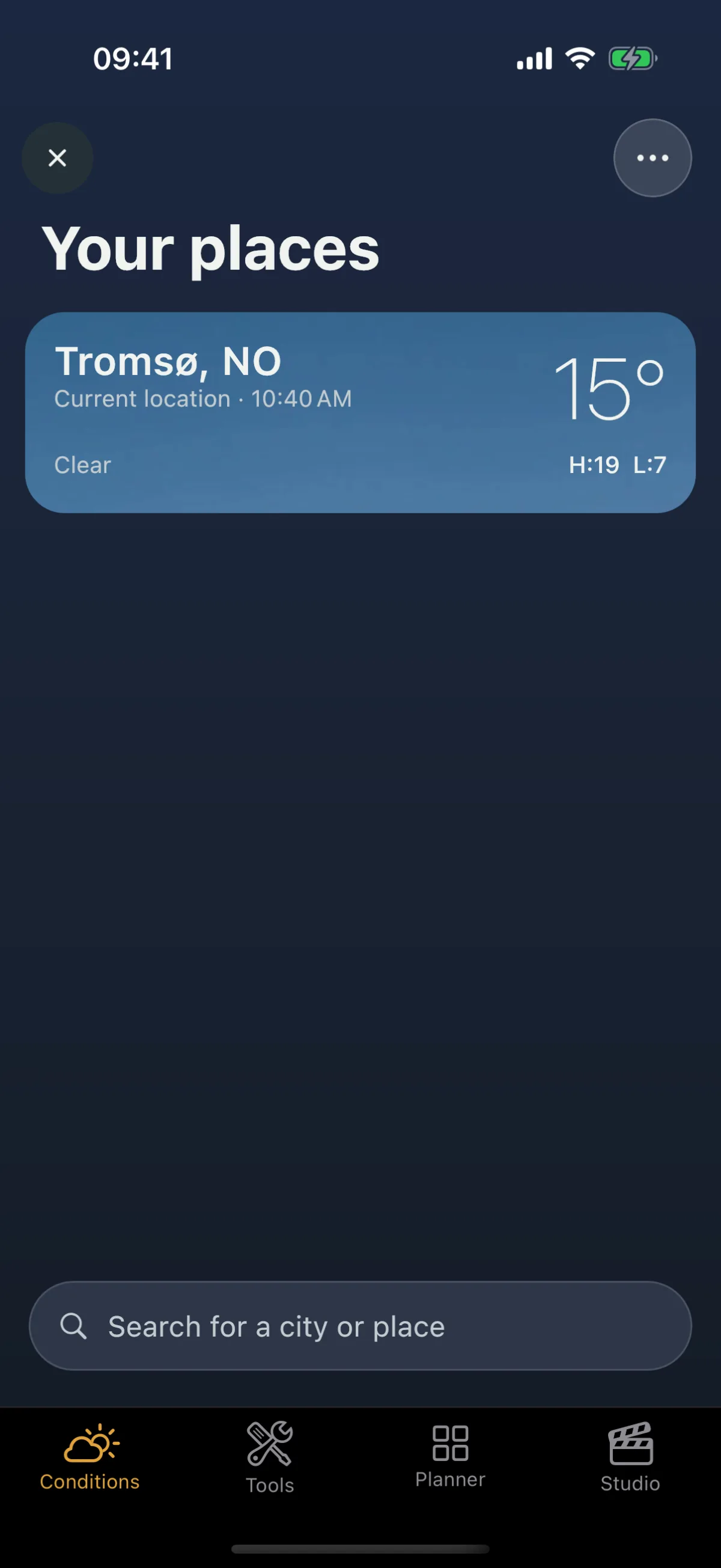
- Your places opens over the page. Tap a card to go to that place’s page, or tap ✕ (or pull the list down from the top) to close it.
Each card shows the place’s sky, its temperature, the condition worth knowing about tonight, and Alerts on when its alerts are armed.
How to add a place
- Open Your places.
- Tap the add button. The map opens on your position with the search field over it.
- Find the place one of three ways:
- Search for a name. The results come in two groups: Your spots, the spots saved in your library, with the distance to each (searched on your phone, so they work offline), and Places, towns, regions and landmarks anywhere on Earth (these need a connection).
- Press and hold the map where you will stand to drop a pin.
- Pick a point by moving the map.
- A preview of that place’s Conditions page opens, so you can scroll and see what you would be adding.
- Tap Add (the +). The place goes to the end of your list, and the alerts sheet slides up once so you can choose what to be told about. Skip keeps the place without alerts.

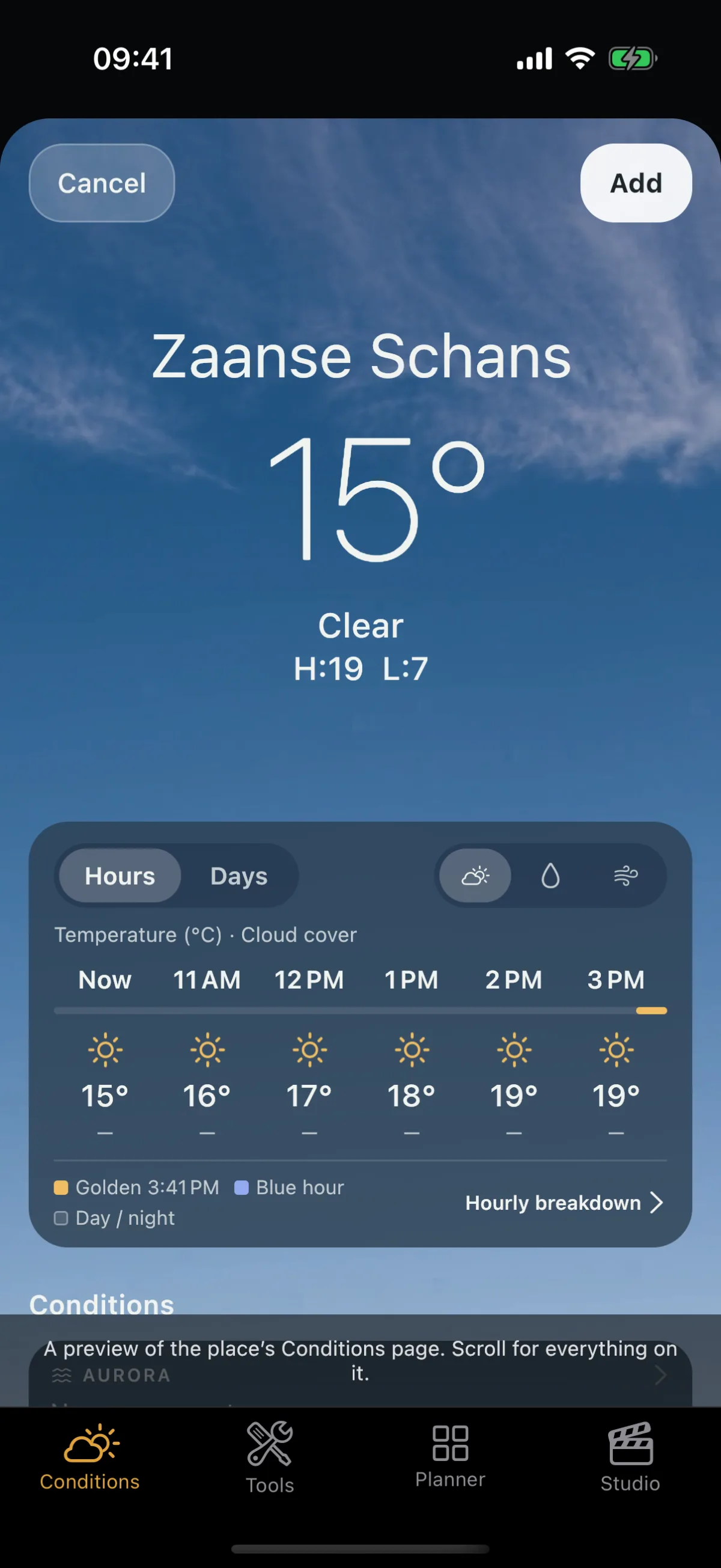
Tap Cancel on the preview to go back to the results with your search kept. Adding a place you already follow does not make a second copy.
No match? Check the spelling, or search for a nearby town or region, or drop a pin. A spot you have saved in your library shows under Your spots by its own name, even where the place has no name on a map.
Watch the exact spot
A search for a town gives you the town. Most of the time you want the one spot where you shoot. On the preview, tap the pin button, move the map until the pin sits on your spot (zoom in for a closer fix; the pin stays centred), and tap Use this spot. You return to the same preview, now showing that spot’s conditions. A spot is named for what is near it, and you can rename it; with no connection it is named by its coordinates until you rename it.
How to move, rename or remove a place
A place’s page has a menu beside the bell:
- Move pin re-pins the place on the map and keeps its name, its alerts and the area it watches. The old position stays until you confirm the new one.
- Rename changes the name it has in Your places and in its alerts.
- Remove place takes it out of the list.
Current location has no Move pin, because it follows you.
How to put your places in order
- Open Your places.
- Touch and hold a card until it lifts.
- Drag it up or down, and let go where you want it.
The order of the list is the order you swipe through on the Conditions tab. Current location always stays first.
How to remove a place
- Open Your places.
- Swipe the card to the left.
- Tap Remove.
The place’s page goes, and its alerts stop. If the place came from one of your saved spots, the spot itself stays in Planner. Current location cannot be removed.
How to turn on alerts for a place
- Swipe to the place’s page on the Conditions tab.
- Tap the round bell at the top right of the page. The alerts sheet slides up.
- Switch on each condition you want to hear about, and pick the forecast area: This spot (about 1 km), Nearby (about 5 km) or Wide (about 25 km).
- Tap Turn on alerts. The first time, Viewpoint says why it needs permission. Tap Allow alerts, then allow notifications when your phone asks, or the alert cannot reach you.

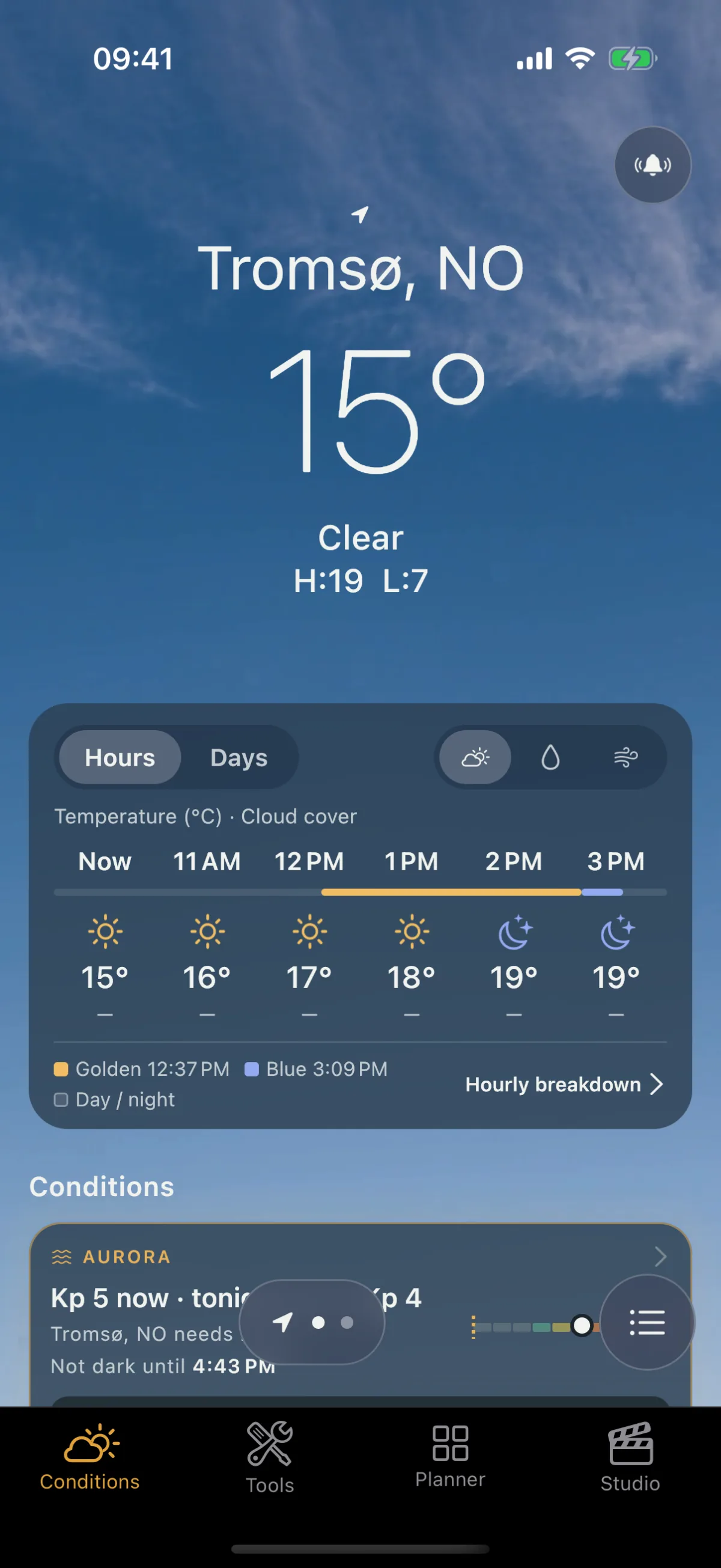
Viewpoint then lets you know when a condition you chose is on its way to the area you picked. To change the choice, tap the bell again. To make the place quiet, tap Turn off alerts on the sheet; the place stays in your list.
If you said no to notifications, the place shows that notifications are off, so a silent alert never looks like a working one. You can allow them later in your phone’s settings for Viewpoint.
How to get alerts where you are
- Swipe to the Current location page (the first page, marked with the location arrow).
- Tap the bell at the top right.
The place you are standing in is saved to Your places with its alerts on, so alerts keep working for that spot when you move on.
What an alert says
- A place’s briefing names each condition worth knowing about, the hours it lasts in the place’s own time and how likely it is, in your language and units. It arrives only when the outlook has changed since the last one, so when nothing is worth saying, nothing is sent. Tap it and the place’s page opens at that condition and hour.
- When several of your places have news at once, one notification covers them, rather than one each.
- An aurora alert names the place and the Kp, then what the place needs and which way to face. The afternoon heads-up is one item of the briefing. See Aurora alerts.
The Conditions widget shows which of your alerted places has a condition on right now.
Your list, its order and each place’s alerts are the same on every device you sign in to. If your Online subscription lapses, the alerts stop.
How to switch between Celsius and Fahrenheit
- Open Your places.
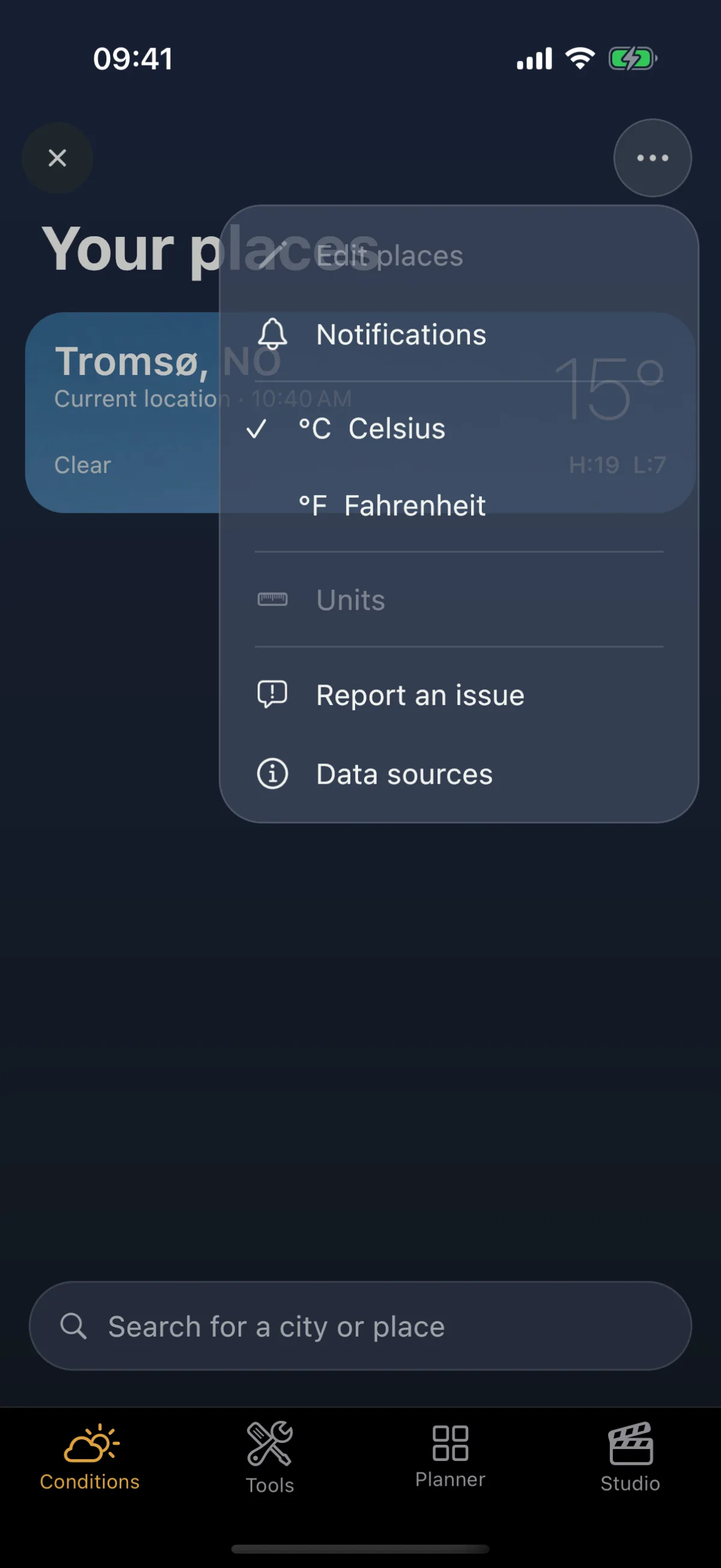
- Tap ⋯ at the top right.
- Pick °C Celsius or °F Fahrenheit.
The temperatures on the Conditions page and its sheets follow your choice.
The same ⋯ menu also has Notifications, Report an issue and Data sources.
Related
- Conditions — every card on the tab
- Aurora alerts
- Offline behaviour
- Getting started