
Features
Conditions and Your places
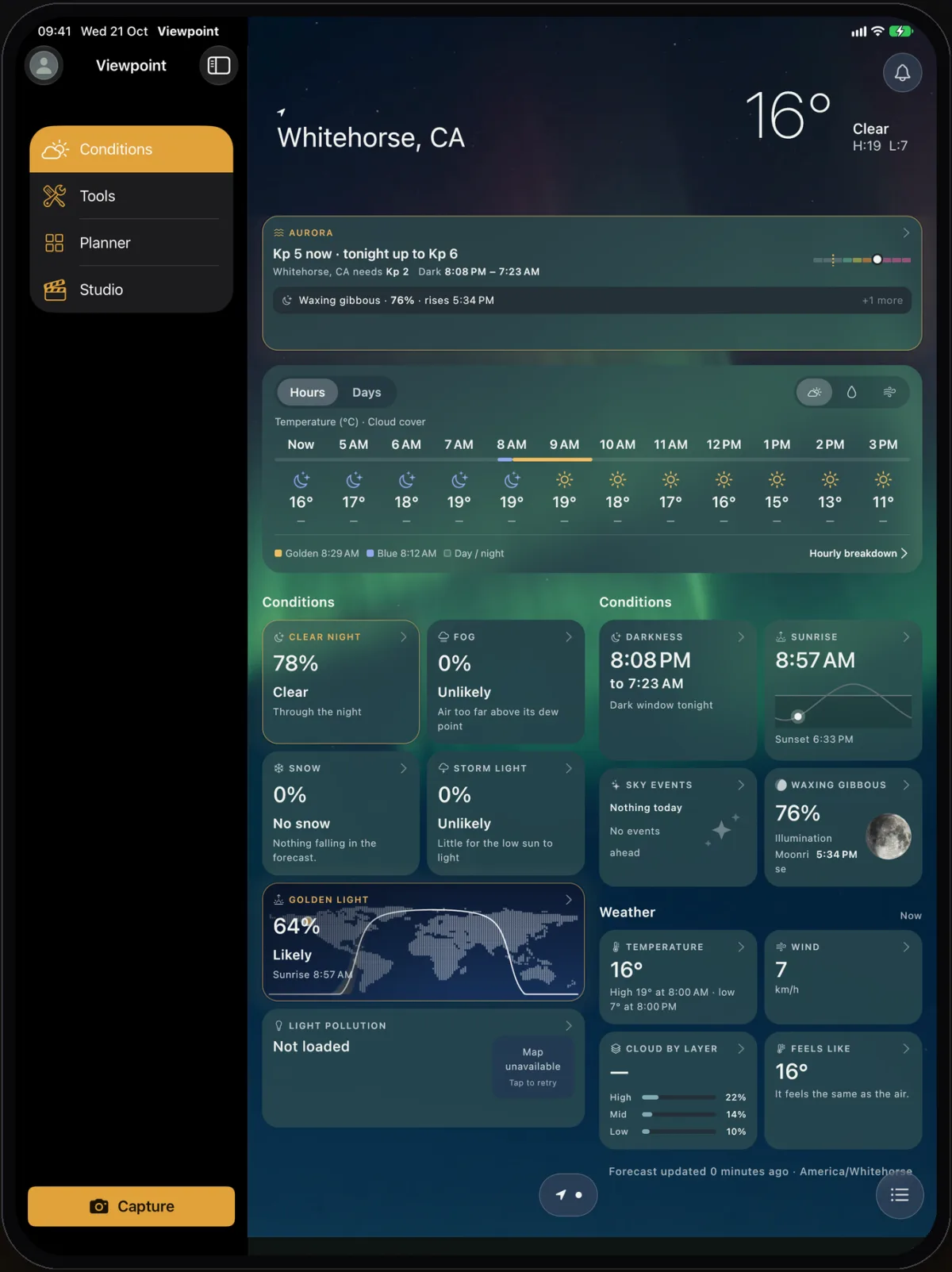
The Conditions tab answers one question for each place you care about: is it worth going out, and when? Each place gets its own page: a sky that looks like the sky there, the weather now, an hourly card, and a tile for every condition a photographer plans around. Tap a tile and its sheet slides up with the detail behind the headline: a chart hour by hour, the readings that drive it, and the times in the place’s own clock.
This page walks through every card on the tab, in the order you meet them, and says what each one carries.
Conditions needs a Viewpoint Online subscription and a connection; what you last saw stays readable offline, with its age. Without Online, the tab shows what Online adds instead of the page. See Signed out if you have a subscription but are not signed in.
Moving around
- Swipe left or right on a page to move between your places. The dots at the bottom show where you are; the arrow is your current location.
- Pull down on a page to refresh it. The page follows your finger, the refresh indicator sits just under the header, and the page settles back when the new conditions arrive. If your phone is set to reduce motion, the page stays still and only the indicator shows.
- The list button (bottom right) opens Your places.
- The map button opens the map on the place you are looking at.
- On an iPad the page uses the width of the screen: the header, the hourly card and the tiles are laid out in columns rather than stretched from the phone layout.
The page
The header
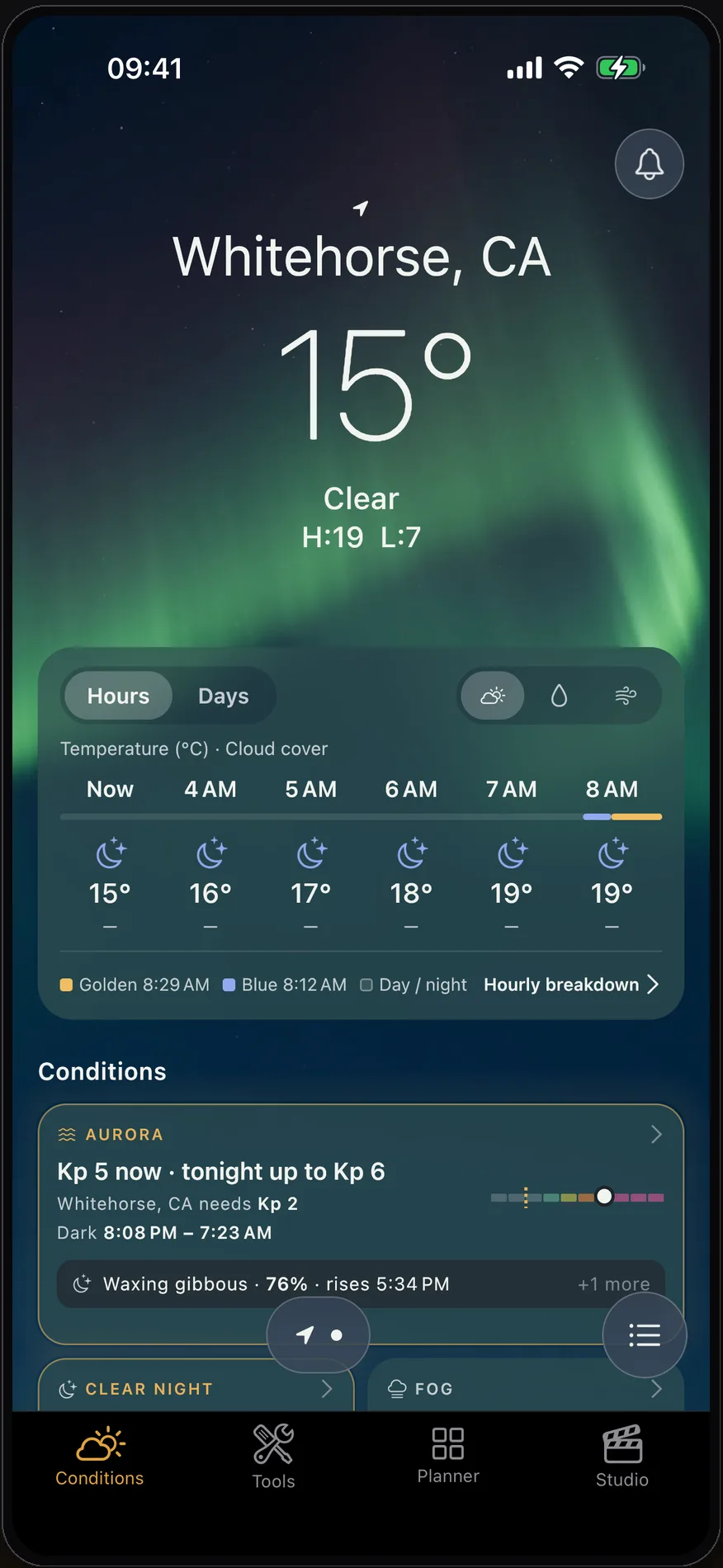
The header names the place (or Current location, with the location arrow) and states the weather there now: the temperature, a sky word (clear, partly cloudy, cloudy, fog, drizzle, rain, snow, showers or thunderstorm) and today’s high and low. The sky behind it is a short loop of the sky as it looks for that place and hour, by day and by night.
For the hour now, the sky word is read from a recent satellite measurement of sunlight at the place where one is available, rather than from the forecast model alone. At night, with the sun low, or where no fresh measurement covers the place, the forecast decides.
The round bell at the top right turns alerts on for the place; see Alerts belong to a place.
Your next window
When a condition is expected at the place, Your next window names the earliest one, the hours it lasts in the place’s own time zone, and whether that is today, tomorrow or later this week. When nothing is expected, the card is left out rather than shown empty.
The hourly card
The hourly card has two views, switched at its top left:
- Hours shows the coming hours: the next few on a phone, twelve on a wide screen. A track under the hours marks the golden and blue hour, and a key under the card explains every colour on it, including the stretch that is neither. At a latitude and season with no golden or blue hour, it says so.
- Days shows a row for each day the forecast holds, up to a week: the day, its weather glyph (with the chance of rain when something is falling) and its low and high on a common scale, with a dot for the temperature now on today’s row. Tap a day to open the weather sheet on that day.
The switch at the top right picks what the hours show: temperature and cloud cover, precipitation (how much and the chance of it), or wind (speed and gusts). The card remembers your choices.
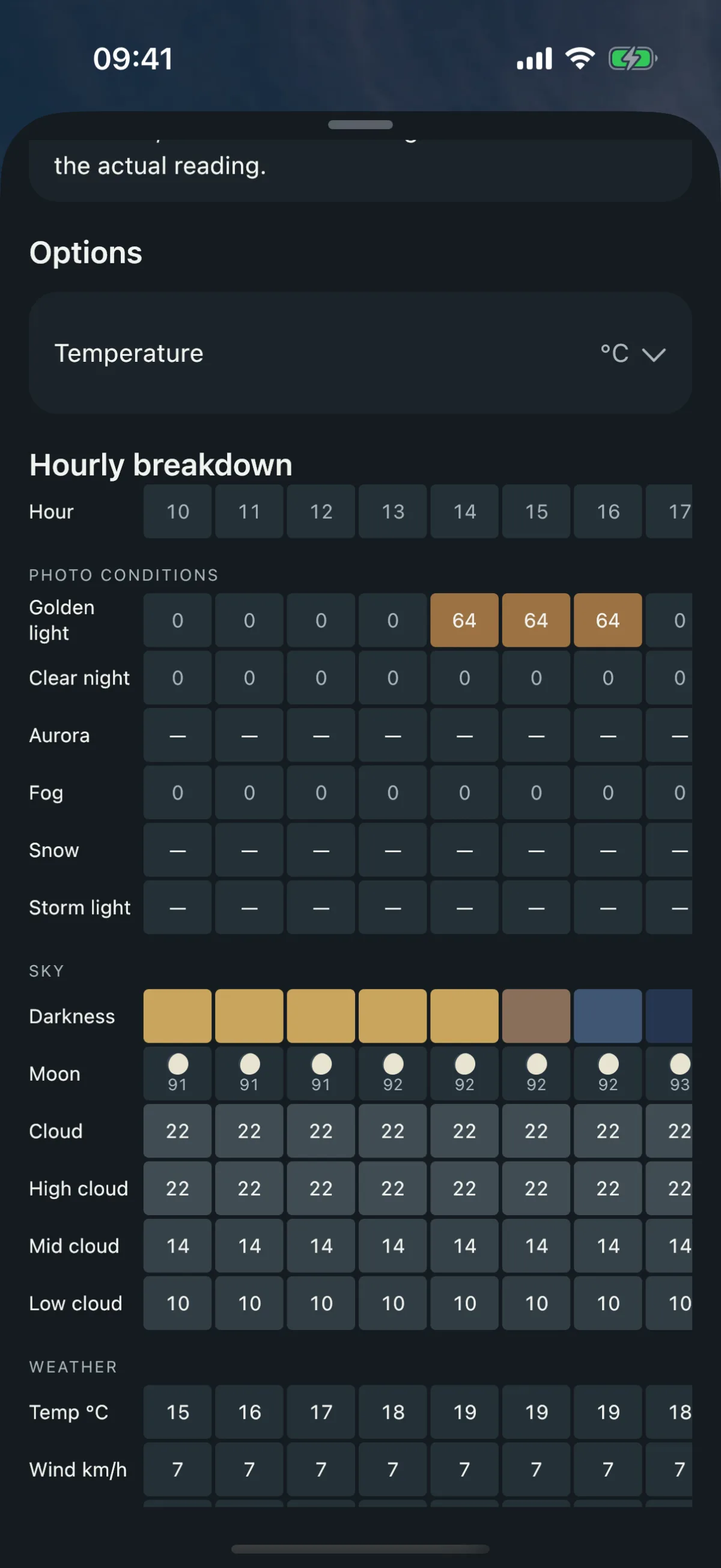
Hourly breakdown at the foot of the card opens a grid for the place, one column per hour of a day, with a chip for each day. Its rows come in three groups: photo conditions (golden light, clear night, aurora, fog, snow and storm light, scored by the same engines as the tiles), sky (the darkness phase, the moon and the cloud in total and by high, mid and low layer) and weather (temperature, wind and rain). A reading the forecast did not carry shows a dash, never a zero. Under the midnight sun or the polar night, a note says the sun stays up or down all day.
The weather tiles
Under the conditions, the Weather tiles give the temperature with the day’s high and low and when they happen, the wind, the cloud by layer and feels like. Tap any of them for the weather sheet: the chosen day hour by hour, with a day picker to move through the week, in the view you pick: the temperature (actual and feels like) with the cloud cover in total and by layer, precipitation (how much each hour and the chance of it), or wind (speed and gusts). Each view ends with a short note on what its numbers mean.
Feels like is the forecast’s own apparent temperature, so the header and the sheet always agree.
Tiles and their sheets
Each tile opens a native sheet that slides up from the bottom of the screen and drags down to close. A tile about a later day names the day; a tile from a saved forecast says As of the time it was fetched.
The likelihood words
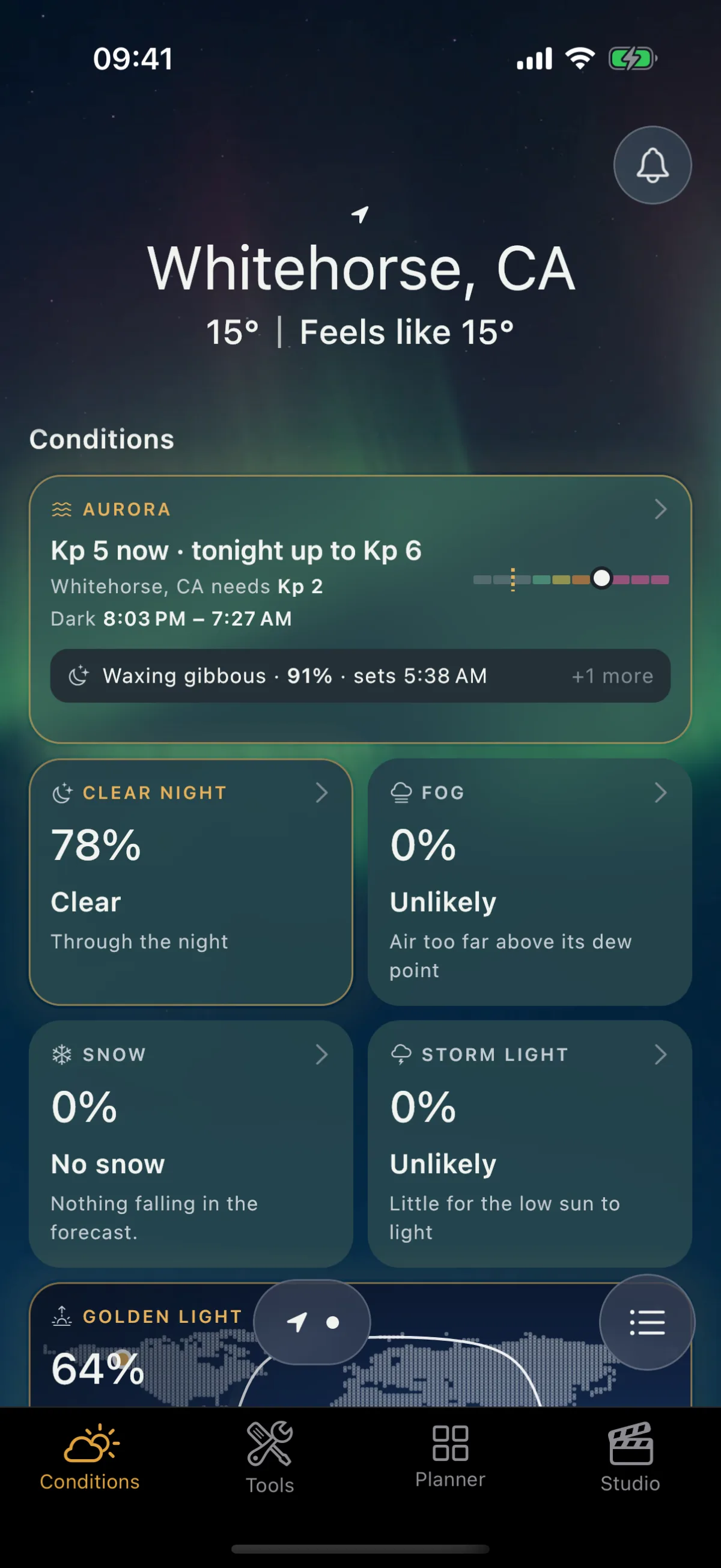
The weather-driven tiles lead with a percentage and a word, and the word is the one to read first:
| Tile | The words it uses |
|---|---|
| Afterglow, golden clouds, storm light | Unlikely · Possible · Likely |
| Fog | Unlikely · Possible · Likely · Confirmed |
| Clear night | Cloudy · Partly clear · Clear |
| Snow | No snow · Light snow · Snow |
Confirmed fog means the forecast itself reports fog, or visibility under a kilometre, rather than conditions that favour it. Under the word, a short line says why: “High cloud ready to catch the colour”, “Valley mist in calm air”, “Little for the low sun to light”. When the forecast is missing a reading a condition depends on, the tile says the day is not judged instead of showing a number.
Every percentage is worked out by the same condition engines on iPhone, iPad and Android, so the tile, its sheet and the hourly breakdown never disagree.
Aurora
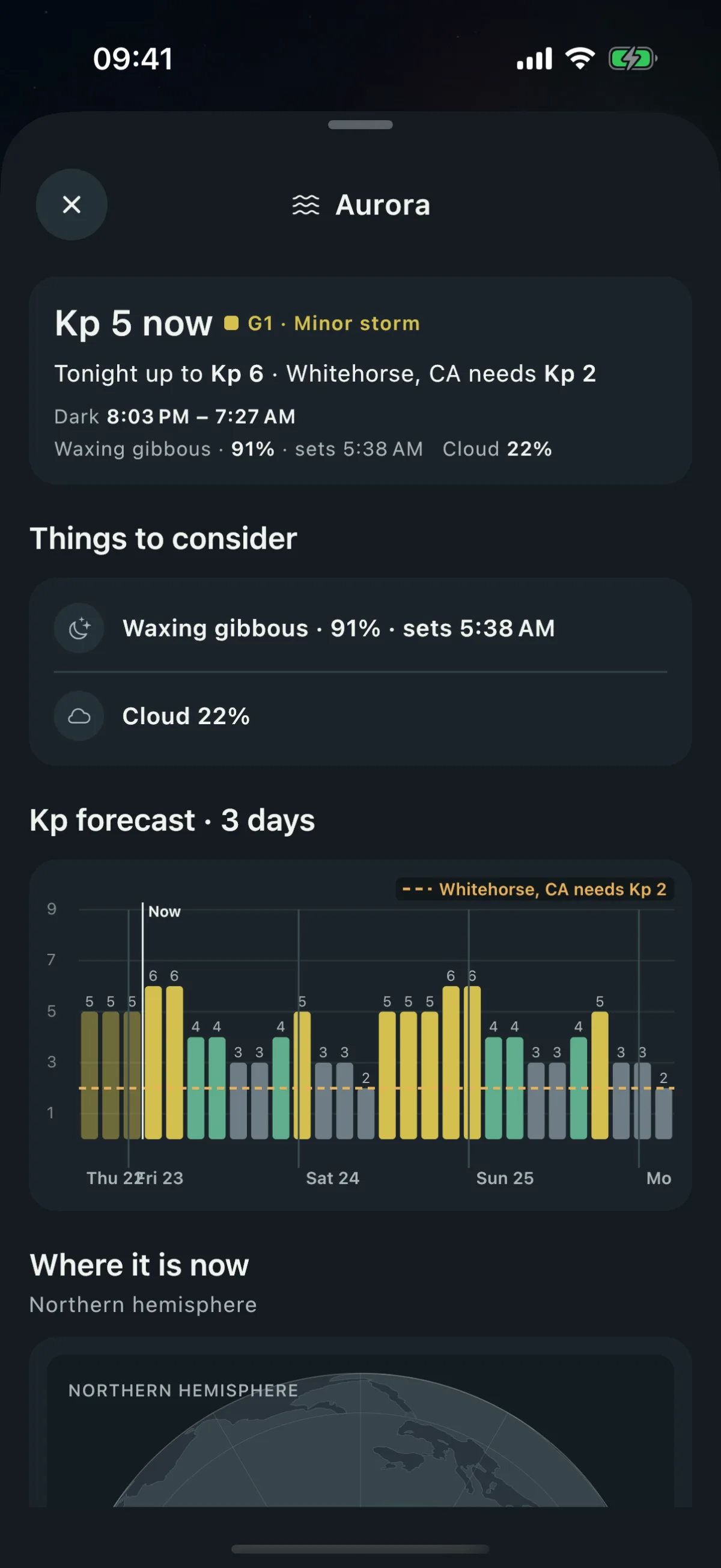
The aurora tile leads with facts, never a verdict: the Kp now and tonight’s highest forecast Kp, the Kp your place needs, the dark window, and the moon. Its sheet adds the three-day Kp history and forecast, the solar wind, and a globe of the aurora probability map for your side of the world with your place marked. Where the aurora cannot reach a place, there is no aurora tile. Aurora alerts explains every fact it shows and both of its alerts.
Clear night
The tile gives the night’s clearest hour as a percentage, its word, and one fact: “Until 02:00, then cloud”, “Through the night”, or the cloud figure for a night that is not clear. It scores only the hours when the sky is fully dark (the sun more than 18° below the horizon). The moon is stated as a fact and never lowers the number. Where the sun never sinks that far, the tile says there is no dark sky rather than giving a number.
The sheet adds a day picker, a summary naming the clearest hours, the clear sky hour by hour with the moonset marked, and What drives it: total cloud at the clearest hour, high, mid and low cloud, visibility and the moon.
Afterglow and Golden clouds
Golden light tells two different skies apart, because the sky does two different things as the sun nears the horizon:
- Golden clouds is warm low sun lighting broken cloud gold, just after sunrise or before sunset. The sun is between about 6° above the horizon and just below it.
- Afterglow is the red and pink sky after sunset or before sunrise, when cloud overhead is lit from below the horizon. The sun is between just below the horizon and about 6° under it.
Each has its own tile, its own sheet and its own alert. The tile gives the best chance of colour in its window as a percentage and a word, with the time of the sunrise or sunset it belongs to.
The sheet adds a day picker, a plain sentence on why, the band the sun sits in and a framed curve of the sun through that window, a panel for the other window of the same day, the golden and blue hour times, the hours graded inside the window, and What drives it: the cloud by layer and how broken it is, whether the horizon is open, and the sun’s bearing. What makes a good evening is a horizon the low sun can get through and enough cloud to catch its light. A small map of the place shows the sunrise and sunset directions; tap it to open the map on that layer and scrub through the hours.
Fog
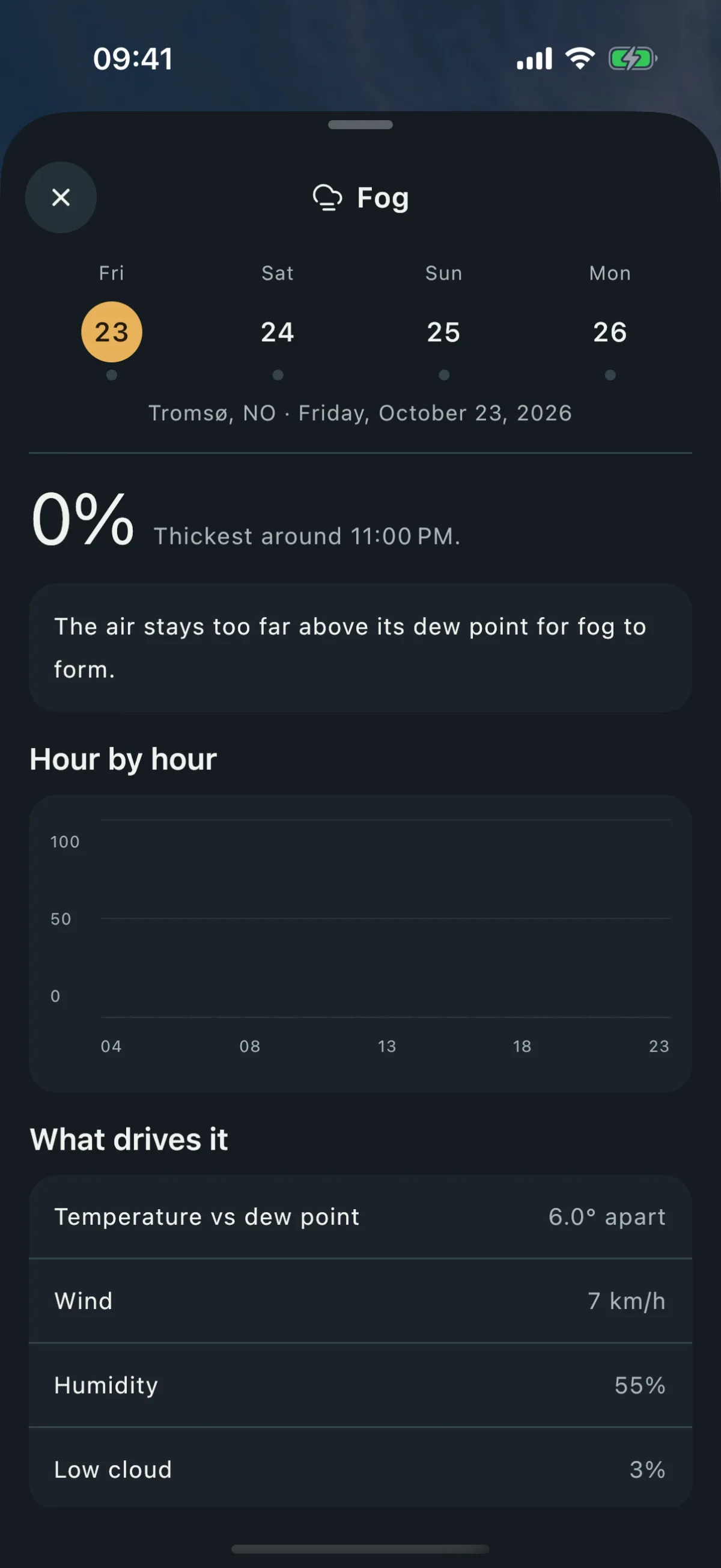
The tile gives the day’s peak chance of fog, its word, the hours fog is possible and the reason: valley mist in calm air, fog drifting on a breeze, or what stops it (air too dry, too windy, too much low cloud).
The sheet adds a day picker, the hour fog is thickest, the sunrise time (the moment for light through fog), fog likelihood hour by hour with sunrise and sunset marked, and What drives it: how far the temperature sits above the dew point, wind, humidity and low cloud. A small map of the place opens full screen with an hour scrubber.
Snow
The tile leads with the word, then the percentage, then one fact: when the snow starts or stops, and “Peaks only” when it settles on the heights rather than at the place. A day with no snow says No snow with no number. Rain is never counted as snow.
The sheet adds a day picker with each day’s level, a summary, snow likelihood hour by hour with the start marked, and What drives it: temperature, freezing level, snowfall and wind with gusts. When snow is falling, it names the next day with widespread snow. The snow level is an estimate from the temperature, said as a height above the place, not an altitude.
Storm light
Storm light is the low sun breaking through a gap at the horizon while showers are still passing. The tile gives the chance for the next sunrise or sunset still ahead, its word, the reason, and that event’s time and compass direction. When today is flat and a later day has a real chance, the tile opens on that day and names it.
The sheet adds a day picker, the chance graded only for the hours around sunrise and sunset, and What drives it: low, mid and high cloud, whether the horizon is open, partly blocked or blocked, showers and when they end, and wind gusts. A reading the forecast did not carry has no row.
Tide & waves
For a coastal place, the Tide & waves tile answers where the water is and when. It gives the tide now and whether it is rising or falling, the next low and high in the place’s own time, and the swell. An inland place has no tile at all, and neither has a place on a river, an estuary far up-river, a lake or an enclosed lagoon, where the model cannot say anything honest. Where the model has no tide for a stretch of coast, the sheet says there is no tide reading there and still shows the swell.
The sheet adds the day’s tide curve with the golden light and twilight windows drawn on it, so you can see where the water will be when the light is right, and the swell as a photographer reads it: height, period and direction, with the wind waves apart. Waves also appears as a layer on the map.
Sneaker waves are shown as facts, never as a verdict. A sneaker wave is a set that runs far further up a beach than the waves before it, with little warning. It is most likely when three things line up: a long-period swell, a rising tide, and a shore that faces the swell. The sheet lists each one with its value and whether it is met, and names the level by how many line up. It never says a shore is safe, and a steep beach makes the risk worse in a way no data covers.
The heights and the swell come from a global sea model, referenced to mean sea level rather than to a chart. They are good enough to plan light and not suitable for navigation, and they are not a tide table. A reading the model did not carry shows a dash, never a zero, and offline the sheet shows the last reading with its age.
Darkness
The tile gives tonight’s dark window, when the sun is more than 12° below the horizon, as an opening and closing time, worked out on your device. The sheet draws the 24 hours from noon in day, twilight, dark window and moon-up bands, lists the twilight phases in order, and says how much of the moon is lit, when it rises or sets inside the window and the longest moonless stretch. A day picker moves through the week. Polar night, midnight sun and white nights are said in words, with the date the first dark window returns.
The sun
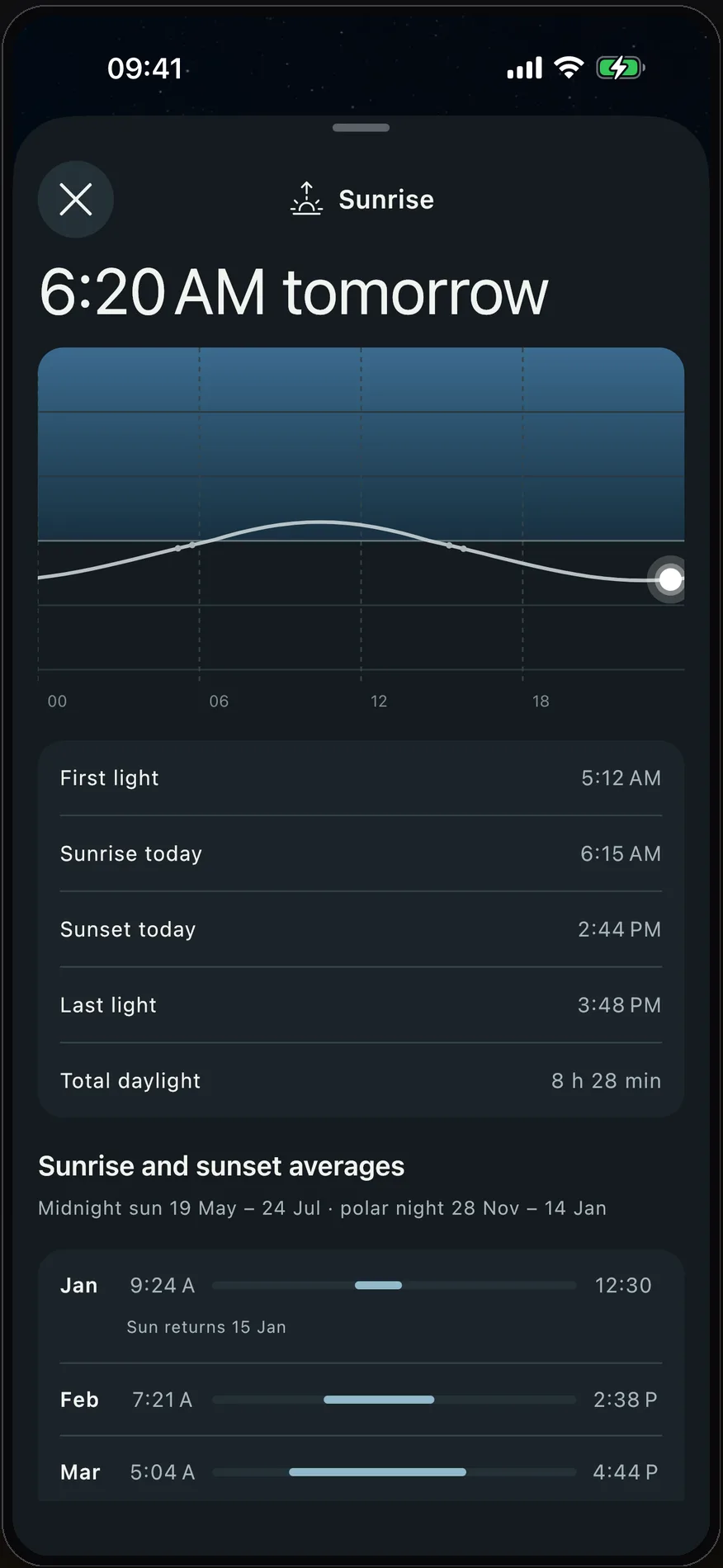
The tile gives the next sunrise or sunset with a small curve of the sun’s height. The sheet adds the curve through the day, first light, sunrise, sunset, last light and total daylight, and the sunrise and sunset averages for each month of the year, with the dates of the midnight sun or polar night where the place has them.
The moon
The tile gives the phase and how much of the moon is lit, with a photograph of the moon as it looks tonight. The sheet adds moonrise and moonset, the next full and new moon, the moon’s distance and a calendar. Drag through the hours and the moon follows on NASA’s own imagery, lit and turned the way you will see it from the place.
Darkness, the sun and the moon are worked out on your device for the place and date, so they stay current with no connection.
Light pollution
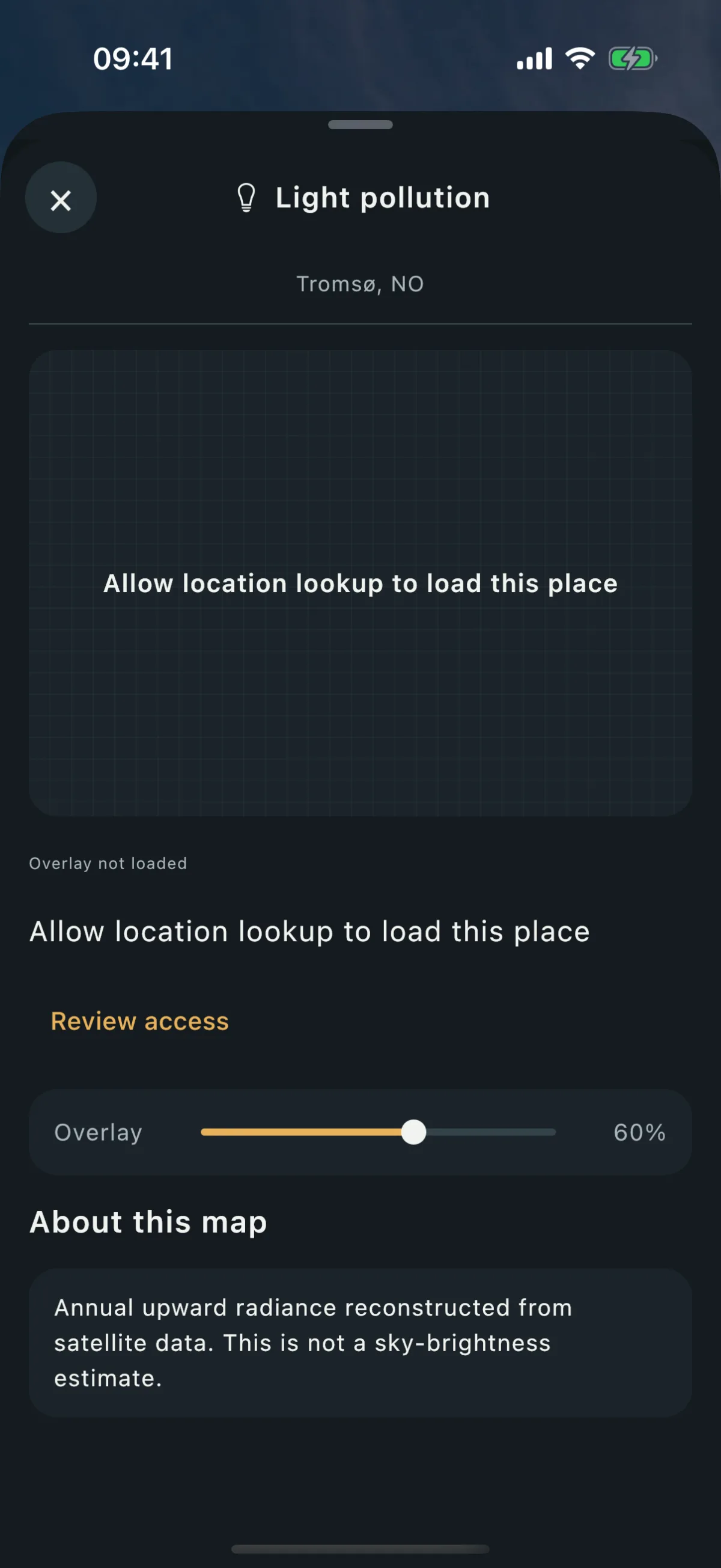
The light pollution tile tells you how much artificial light rises from the ground at a place. It uses a year of night-time satellite measurements from NASA, averaged over the year.
- The number is upward light from the ground, not sky brightness tonight. It is a good way to compare places, and the sheet says so in plain words. It does not know about tonight’s cloud, haze or moon.
- Darker skies nearby lists the nearest places around yours that are darker, with the distance and direction to each, so you can decide whether a short drive is worth it.
- The first time, the card asks your permission to look the place up, and loads the reading once you allow it.
- Open map shows the light pollution layer around the place, with search, its opacity and a recenter button.
- The reading is kept on your phone. Offline, the sheet shows the last saved reading and tells you when it was loaded.

Sky events
The Sky events tile lists what is happening in the sky for the place: an active meteor shower, the window when the Milky Way core is above the horizon and the sky is dark, and, from published astronomy data, eclipses, planet events, supermoons and the seasons, each placed for your place and its local time. When nothing is on, the tile says so and names the next event and its date. Tap it for every event that night: when each one starts and ends, how high it is and which way to look, the best time, a shower’s season and peak date, the core’s season, an hour chart of tonight and a line on when to look. Events with a picture carry a NASA photo. A planet that is up only in a bright sky says so.
Meteor shower dates, radiants and rates come from the International Meteor Organization (IMO), Working List of Visual Meteor Showers, used with the IMO’s permission. Where NASA’s Meteoroid Environment Office forecasts the same shower, its peak time is NASA’s; a shower only NASA lists comes from NASA. Eclipses, planets and comets come from NASA, the moon’s phases and the seasons from the US Naval Observatory, and each event names its source. The Milky Way window is worked out on your device for your place and date, so that part works with no connection. If a source cannot be reached, the tile keeps the events it has rather than showing an empty sky.
The map
The map button on a place’s page opens one map for the whole tab: a dark base map with its credit always on screen, centred on your place, with a Here line that says what is on at the place now and what comes next. The sheets for fog, afterglow and golden clouds, snow, storm light and tide and waves show a small still of the same map on their own layer, and tapping it opens the full map there, at the hour the sheet is on.
Pick a layer from Layers:
- Cloud, total cover.
- Fog, snow and storm light, the same fields the tiles score.
- Wind, drawn as streaks that flow downwind.
- Rain, a forecast and not radar.
- Waves, on the sea only, with lines that show the swell heading.
- Light pollution, a yearly average with no hours.
- Aurora reach, a line at continent zoom: the edge of NOAA’s aurora forecast, drawn only while the forecast is fresh.
The weather layers play hour by hour. Press Play, or step back one hour or forward twelve, and the map follows. A layer your account or place cannot show says so, and a layer with no data for the place says that too, instead of drawing nothing. The map keeps drawing what you last viewed when you lose the connection, and says the base map is unavailable if it never loaded.
A long press on the map drops a pin anywhere to preview that spot’s conditions; see Your places.
Your places
Your places is the short list of places you follow. It always starts with your current location, then the places you added, in your order. Each card shows the place’s sky, its temperature and the condition worth knowing about tonight.
- Add a place: tap the add button and the map opens on your position with the search field over it. Search for any place on Earth, pick one of your saved spots from the same search, or press and hold the map to drop a pin. You see a preview of the place’s page before you add it, and a pin button on the preview refines it to the exact spot you will stand on.
- Reorder: drag a card up or down. The order is the order you swipe through.
- Move, rename or remove: a place’s page has a menu beside the bell with Move pin, Rename and Remove place.
- Remove: swipe a card away. Your saved spot, if it came from one, stays in Planner.
- “⋯” menu: open notifications, switch between Celsius and Fahrenheit, report an issue, or see the data sources.
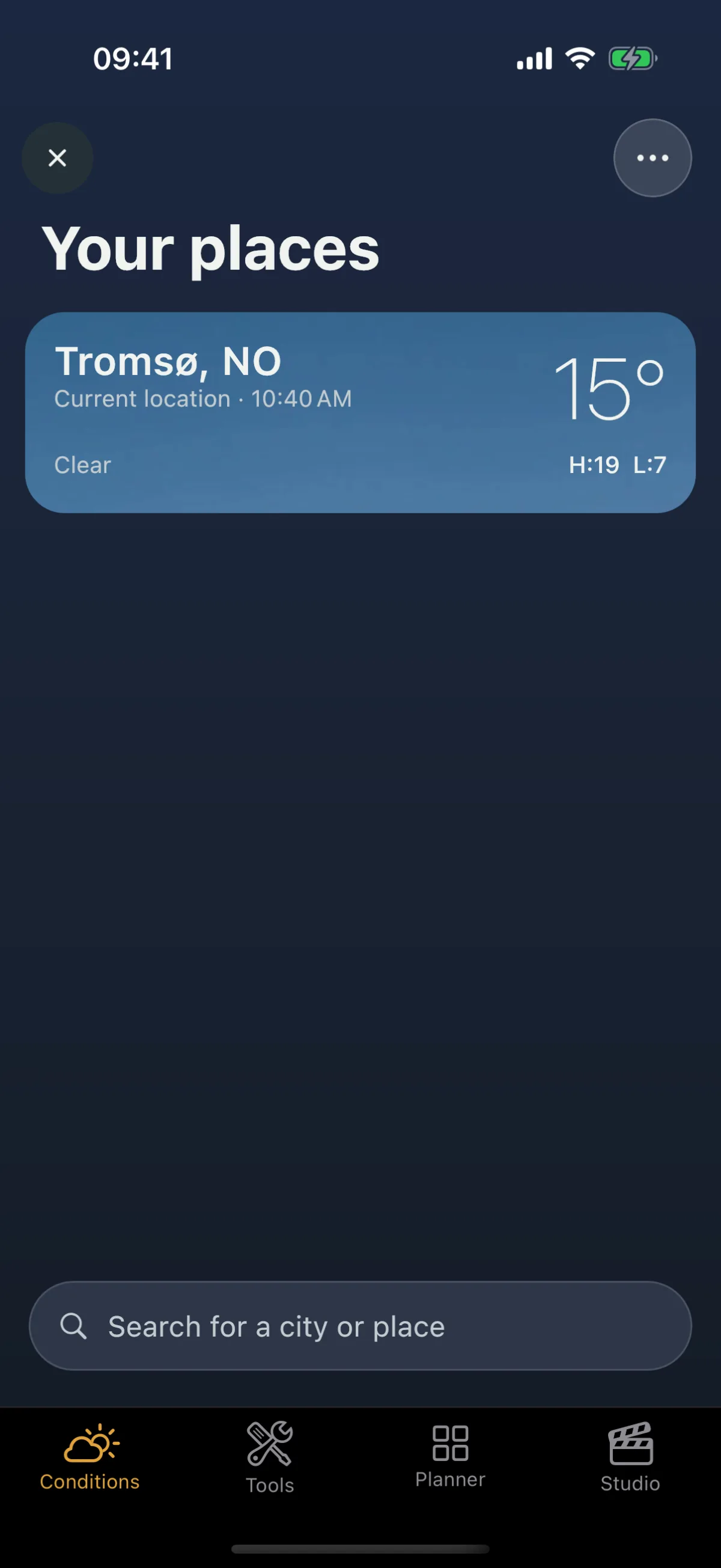

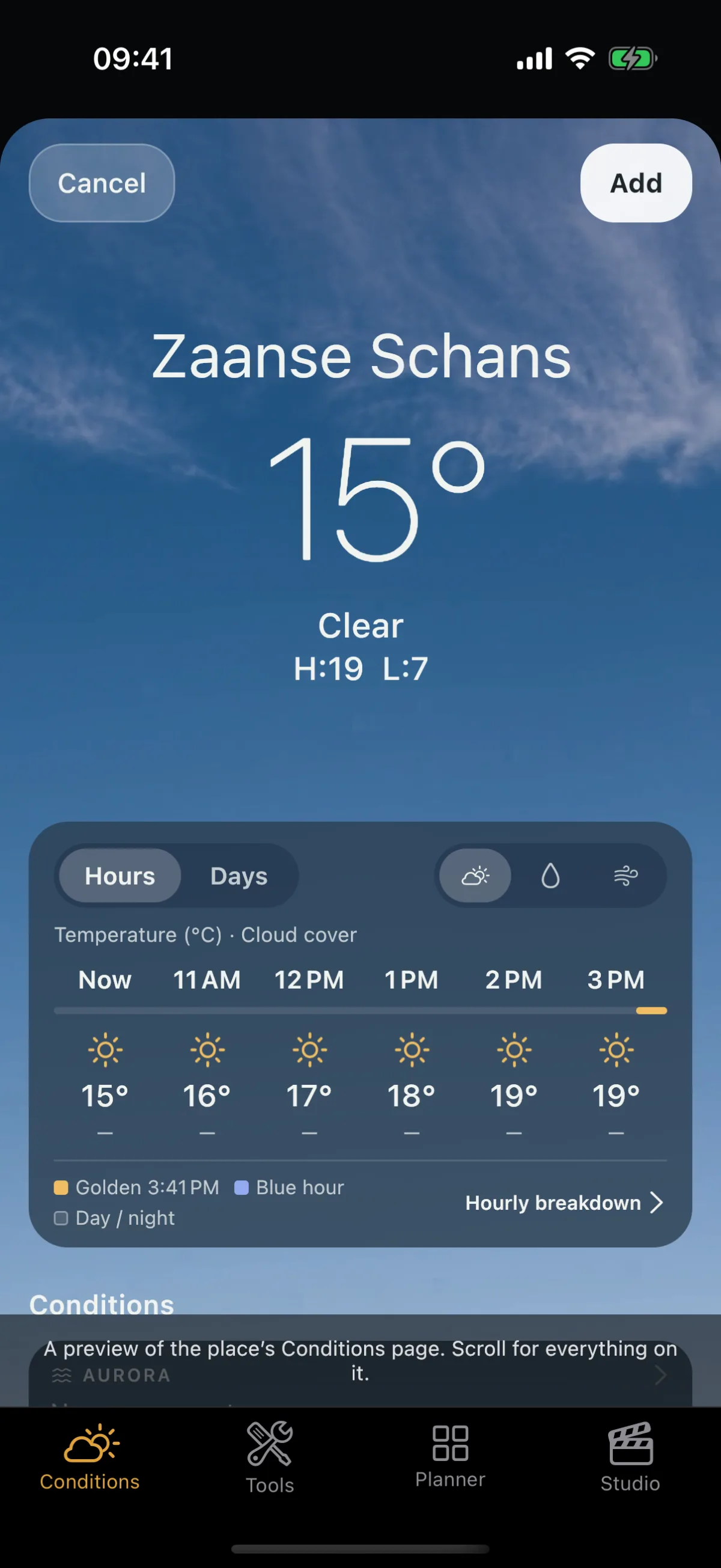
Your saved spots are not listed automatically: the library in Planner can hold hundreds of spots, and Conditions shows only the places you choose to follow. Your places and alerts has the steps for each of these.
Alerts belong to a place
Tap the bell at the top right of a place’s page and the alerts sheet slides up: each condition on or off (golden light and clear night start on for a new place), and the forecast area around the place, This spot (about 1 km), Nearby (about 5 km) or Wide (about 25 km). Tap Turn on alerts and Viewpoint notifies you when a condition you chose is on its way. Tap the bell again to change the sheet, or Turn off alerts, and the place stays in your list, just quiet. A card in Your places shows when its alerts are on. When you add a place the sheet opens once, and Skip keeps the place without alerts.
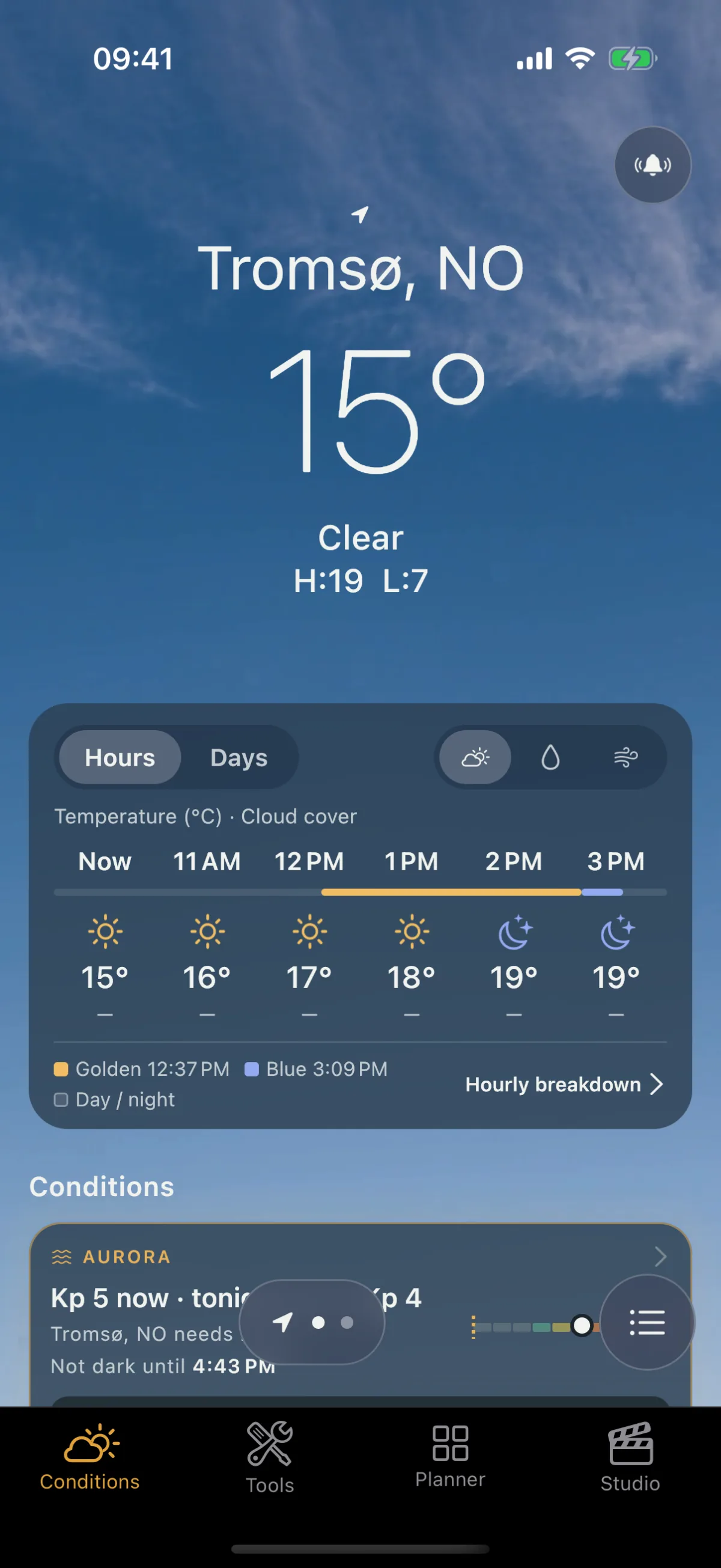
The bell works on Current location too: the first time you arm it there, the place you are standing in is saved to Your places with its alerts on.
A place’s briefing replaces the old “weather update” line. It names each condition worth knowing about, the hours it lasts in the place’s own time and how likely it is, in your language and units, and it arrives only when the outlook has changed since the last one, so a quiet outlook sends nothing. Tap it and the place’s page opens at that condition and hour. When several places have news at once, one notification covers them. Aurora has its own live alert with the facts, and its heads-up is one item of the briefing; see Aurora alerts.
The first time you arm an alert, the place’s alerts are saved at once and a sheet says why Viewpoint needs permission: alerts reach you only once you allow notifications. Tap Allow alerts and your phone asks whether Viewpoint may send them, or tap Keep watch, no alerts to keep the place watched without notifications. That is the moment it is asked, because that is when it means something. If you say no, the place shows that notifications are off, so a silent alert never looks like a working one.
If you had watches before 2.1, each one is now a place in Your places, with the same alerts on. Nothing was removed. An old watch that covers a wide area is narrowed to the exact spot from its page’s menu with Move pin.
Your list, its order and each place’s alerts are the same on every device you sign in to. The Conditions widget shows which of those places have a condition on right now.
Offline and saved forecasts
The forecast for each place is kept on your phone. With no connection, the page shows the saved copy with a line saying when it was fetched and why it was not refreshed, and hours that have already passed are dropped. With no saved copy, the page says so and offers to try again. A place with location turned off asks you to turn it on or pick a place; it never reads as offline. See Offline behaviour.
Signed out
You never have to sign in to open Viewpoint. If you have an Online subscription from your app store but you are signed out, the Conditions tab shows Sign in to use your subscription, and nothing else is asked of you. Sign in to the account the subscription belongs to and your places return. See Getting started for what you keep while signed out.
What it never claims
- A percentage is a forecast, not a promise. It comes from a weather model that reports one value for an area kilometres across. A valley, a ridge or a single fog bank smaller than that is not resolved, and accuracy falls off the further ahead you look.
- A missing reading is never a zero. It shows a dash, and a day the forecast cannot judge says so instead of showing a calm sky.
- Aurora is facts, not a verdict. The tile says what is happening and what your place needs; the decision to go is yours.
- Tide & waves is a model, not a tide table, and never says a shore is safe. It is good for planning light, not for navigation, and sneaker waves are shown as the facts that line up, not as a verdict.
- Light pollution is not tonight’s sky. It is a yearly average of the light rising from the ground.
- Times are the place’s own. Plan a trip abroad and the hours you read are local to where you are going, not to your phone.
Where the data comes from
Viewpoint credits its sources in the app, on a Data sources screen in Settings and at the end of the “⋯” menu on Your places: weather, tide and wave data and satellite data from Open-Meteo, night-time light, sky photographs, eclipses, planets and comets from NASA, the moon’s phases and the seasons from the US Naval Observatory, space weather from NOAA’s Space Weather Prediction Center, meteor showers from the International Meteor Organization (IMO) and NASA’s Meteoroid Environment Office, the base map from OpenStreetMap contributors and Protomaps, and the world’s outlines from Natural Earth. The sun, the moon, the dark window and the Milky Way core are worked out on your device. See Data & transparency for what each is used for and what a forecast cannot tell you.
Related
- Your places and alerts — step by step
- Aurora alerts
- Widgets
- Offline behaviour
- Data & transparency
- Sun, Moon & Milky Way almanac
From the Field Guide:
- Reading the weather for landscape photography
- How to shoot golden hour and blue hour
- How to photograph fog and mist
- How to photograph a sea of clouds
- How to photograph storm light
- How to photograph snow and winter landscapes
- Finding dark skies: light pollution and the Bortle scale
- How to photograph the northern lights
- How to photograph a meteor shower